Showing posts with label C3D. Show all posts

Monday, April 23, 2018

Creating Points Along an Alignment by Specified Stations


I recently had a project in which I need to import a set of points along an alignment to locate some bridge pier locations. The locations were provided to me via a Microsoft Word document as Stations along the alignment like shown below

One could manually type in these locations along the alignment with the command to Create Points Station / Offset option, but that would take time to do and would introduce more chances for human error in typing in the stations and offsets.

Alternatively, I chose to convert the table provided into Microsoft Excel and import the data using the the Create Points Import From File option as shown below.


In order to do this, there was a few minutes of manipulating the data into Microsoft Excel by doing the following:

  1. Highlight and Copy the table in Microsoft Word
  2. Paste into a blank Excel spreadsheet
  3. Reorder the columns provided to be in the following format: Station, Offset, Description (Pier Number). Note: Additional format options are available and can bee seen from command line screen shots below.
  4. Set the Offset column to be 0 in order to have the points fall directly on the alignment
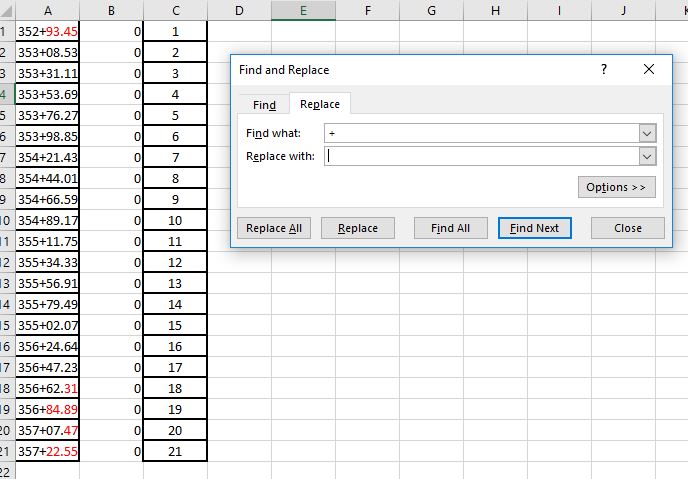
  5. Replace the station format into numerical format - to do this, do a find and replace for "+" and replace with nothing.
  6. Save the Microsoft Excel spreadsheet as a CSV file, comma delimited.
  
Data in Microsoft Excel

Data in Notepad viewing the CSV file

Next, in a Civil 3D file containing the Alignment, run the Create Points Import From File option shown on one of the above screenshots. Select the CSV file and follow the command line prompts. You'll need to specify the File format by entering in the corresponding number 1 - 6, the delimiter format corresponding number 1 or 2, and an Invalid indicator for Station Offset - default -99999. The invalid indicator is used for points that can't be computed due to offset issue or for being outside the extents of the alignment.


Overall, this process took me about 5 minutes to bring the data in. To save even more time if the stations were to change frequently, I would provide the source of the data with a Microsoft Excel spreadsheet setup numerically, formatted to show the stations, in the order needed to easily import the data as this would save additional time.

For more information, see this Autodesk Knowledge Network page

Tuesday, November 3, 2015

Wednesday, July 22, 2015

Civil 3D Users Looking for Work?

Looking for an experienced CAD Operator/Designer in Chicago with Civil 3D experience in Chicago.

See Job Posting on LinkedIn

Tuesday, February 25, 2014

Civil 3D Slope Across Pipes App

Have you been looking for a better workflow in assigning slopes to pipes, especially when they are not needed to be analyzed in Storm Sewers or Storm and Sanitary Analysis? There's a new app for that on the app store now!!

Check out Slope Across Pipes here.

This app allows for quickly setting the slope of a number of pipes within a common pipe network and applying pipe drop across each structure. The app allows for selecting pipes/structures in plan view or pipes/structures in profile view and offers two modes - by slope and by inverts. When selecting parts in profile view, the app also provides the ability to extract the selected point elevation from the profile to apply to the pipe network. For both modes, the app does not care if the upstream or downstream end is selected, nor does it care if the start and end points of the pipes are in the same configuration throughout. When applying pipe drops in structures, the app checks to see if the structure is not a null structure before applying.

App running via Plan View


 App running via Profile Slope Mode Upstream to Downstream

 App running via Slope Mode Downstream to Upstream
 
 App running via Profile Inverts Mode Downstream to Upstream

 App running via Profile Inverts Mode Upstream to Downstream

Wednesday, August 28, 2013

Drawing Design Notes

A common practice of mine, has once again saved my position with my firm, and I thought I'd share with you all something I think everyone should be doing when working on complex designs in AutoCAD or AutoCAD Civil 3D.

I've found that design notes are extremely important to have when working on drawings. Often times I'll do a grading plan and complete the full design and not come back to it for almost 6 months - and it's usually do to someone not understanding why the surface may have been developed the way it was. This happened to me once again today where others were getting frustrated as to why something wasn't how they thought it should be - so I said, let me check my drawing notes. I open the design and read through my notes and pointed out a key feature that the engineer had told me to do in the design that they had forgotten about - they thanked me for my detailed notes.

Basically in any complex drawing, in model space off in what I like to call lala land, away from the site or where drawing views would be pointed I place some MTEXT that describes exactly how my design was done. I typically try to be as thourough as possible explaining Civil 3D procedures or AutoCAD procedures as to how something was achieved. It is a real life saver when you come back to that drawing 6 months to a year from when it was done.

If you don't keep design notes in your drawings, I highly recommend doing so.


BLOG POST NOTES (To Save My Blogging Abilities in the Future :) ):
  • This post was written to explain how critcal design notes placed in drawings have saved my career once again.
  • I used Google's blogging page to create my blog post and tried to emphasize my point as well as I could.
  • I began by opening with how the practice has saved my career, but did not reveal it until the second paragraph - hopefully enticing readers to read on.
  • From there I explained the practice and the situation that occured on that day.
  • Next I explained exactly how I achieve that practice.
  • Finally I ended with a recommendation

Tuesday, July 9, 2013

AutoCAD 2014 - New Security Features

One of the newest features in the 2014 product(s) is the implementation of security features. With the AutoCAD* (verticals included) malware going around, Autodesk has implemented two new variables that work as a blocking mechanism for loading external code files - that is, LISP Routines, .NET Files, etc. You can read more about the malware going around here and here.

This new system has it's positives and negatives for sure. Obviously good because it provides added prevention to loading external malicious code, but can be seen as bad because it's an additional dialog for every file you need to load with workflow routines.

 
There are a few ways around this system, as always, and with limited information being out on the web I thought I'd provide some additional things I have found. Of course there is always a way to turn these things off all together which can be accomplished with the new setting SECURELOAD - though this is not recommended as it will leave you vulnerable. You can read more about this here.
 
Manually, you can go into the Options menu, Files Tab, open up Trusted Locations and add the folders of trusted paths. Note that if the path is not set to READ ONLY, AutoCAD will prompt you to manually allow - but this is not recommended as malicious code could save a file into a write enabled path. Once paths are added here, AutoCAD will allow loading of any files in the path without the above dialog appearing. I believe that this is restricted to files directly under the main folder and not under sub folders, though I have not found documentation on this.
 
 
Additionally trusted locations can be added from the command line with the new command TRUSTEDLOCATIONS. Each path can be written out and separated by semicolons ";". For example, C:/This/Is/My/Path;C:/This/Is/Another/Path.
 
With much of AutoCAD* allowing for a cloud based system for file storage, trusted domains can also be added via the command TRUSTEDDOMAINS; again via separated by semicolons ";". You can read more about this here and here.
 
Another way to deal with loading external files is with the recent auto loading system that debuted in AutoCAD 2012 and made it to many AutoCAD verticals in 2013. AutoCAD* 2014 will automatically load bundle files from the Autodesk plugins folder. The bundle files can get quite involved as they are setup to run on multiple platforms as programmed by the developer, thus I won't get into how they work here in this blog, however you can read up more on this here and here.
 
Of course the autoloader system is great, but it can be a bit overwhelming for those who do not do a lot of programming. Thus I have created a LISP routine that can be used for setting the trusted path locations automatically (this could easily be modified for domains as well). Take the code below and paste into a text file and save as a LISP routine - then modify the paths to your own (shown as red text below). This code can also be added into an ACAD.lsp file and saved in the program support folder as AutoCAD will still autoload from there without the security dialogs as well.
 
 
;;SET TRUSTED PATHS
;;Written by Steve Hill, 7/3/2013
;;www.beyondcivil3d.blogspot.com
 
;;This function checks if string 1 (s1) contains string 2 (s2)
;;If not, it combines string 1 and string 2 with a semicolon in between and returns the new string.
;;If it does, it just returns the first string
(defun addtrustedpath ( s1 s2 )
 

           (if (= (strlen s1) 0)
 
                  (progn
                         (strcat s1 s2)
                  );progn
 
                 (progn
                         (if (= (vl-string-search s2 s1) nil)
                                   (progn
                                            (strcat s1 ";" s2)
                                   );progn
                                  (strcat s1)
                          );if
                  );progn
 
             );if
);end defun
 
 
;;This function begins with the trusted path string obtained in the next function (p1).
;;If nothing, it begins with nothing. We then add the paths listed below to this string.
;;The Addtrustedpath function checks to make sure the path does not already exist.
(defun trustedpathstring ( p1 )

              (setq p1 (addtrustedpath p1 "C:\\My\\Path\\Number1"))
               (setq p1 (addtrustedpath p1 "C:\\My\\Path\\Number2"))
              (setq p1 (addtrustedpath p1 "C:\\My\\Path\\Number3"))
              ;;copy code on line above and change path to add more paths here
              ;;continue until all of your trusted paths are added to code here.
);end defun

;;This function gets the current trusted paths, then passes the string to the above function
;;And finally sets the trusted paths variable obtained from the above functions
(defun settrustedpaths ()

              (setq currpaths (getvar "trustedpaths"))
              (setvar "trustedpaths" (trustedpathstring currpaths))
);end defun

(settrustedpaths)

(princ "\n\n****Trusted paths have been set****")
    
Overall, the new security features are a good thing. I recommend leaving them on to ensure your system is not loading malicious code files. Please feel free to comment if you have any better suggestions.


Wednesday, January 2, 2013

Corporate CUI Setup to Include New Autodesk Exchange Store Capabilities

Autodesk Exchange Store App Explanation:

With AutoCAD 2012 and now a good portion of 2013 Autodesk Products, such as Civil 3D, there is a need to allow users corporate wide to install custom applications for use. In the past advanced users could use APPLOAD to load their custom AutoLISP routines and NETLOAD to load their custom .NET (DotNET/DLLs) applications as needed. These methods are still in place, however, with the new Autodesk Exchange Store, Autodesk has implemented a new method that will require the CAD Director/Manager to implement additional changes to CUI files to allow users to use the new functionality. Or at a minimum, users need to learn which tab needs to be added to their Main CUIx file if they are not using the 'out of the box' version.

If you use the Autodesk Exchange Store with the 'out of the box' setup for 2013, you will see custom apps install smoothly with limited effort from the user automatically adding ribbon buttons on a 'Plug-ins' or Add-ins' tab that only appears if these apps are installed. When running the installation of an app from the Autodesk Exchange store, the app will typically install itself to this folder path:

C:\Users\%USERNAME%\AppData\Roaming\Autodesk\ApplicationPlugins

Upon Startup (and even while currently running), AutoCAD/Civil 3D will automatically check this folder for custom apps. Apps installed in this folder will have a main folder name similar to this:

MYCUSTOMAPP.BUNDLE

This bundle folder contains the necessary file(s) to run the app, a help menu for the app, a partial CUIx file for the app, and the necessary image(s) to install custom icons. AutoCAD/Civil 3D will automatically add the partial CUIx file to your Main CUIx file and a new tab will appear on your ribbon. After installing, you should see something like this take place:


In the upper right a notification will appear telling you the app has been installed, from here you can also access the ReadMe Help file for that app (although you only have about 5 seconds to click this file from here during a session, it can be accessed from the actual button as well). The 'Plug-ins' tba will also appear with a button for running the app (of course as always there is a command for each app that can be typed in). The button provides a visual for the app and also access to the help file. Simply hover over the button and hit F1. The app's help file will appear. From here on the app can be used as needed, uninstalled, etc.

Corporate CUI Setup
From a corporate standpoint, some may wish to allow their users to have this functionality built in. The above functionality completely depends on where the workspaces are stored. The software can only automatically add in custom applications onto a 'Plug-ins' tab to the Main CUIx file. Thus if your company runs the workspaces from an Enterprise CUIx file, the software will not be able to modify the ribbon to add the 'Plug-ins' tab because the Enterprise CUIx is read only. So in my opinion, here is the best way to setup your CUIx files to allow for an Enterprise CUIx and auto installation of apps.

First, keep your Enterprise CUIx the way it is - with your corporate workspaces built in it. The image below shows how I have my Enterprise CUI file setup. Basically, this CUI was created from the 'Out of the Box' C3D.cuix file initially. This contains all of the originally parital CUI files and original workspaces. From here I added in a corporate ribbon and menu that were added to the workspaces. This allows me to ensure all users will get the ribbon and menu with corporate custom buttons and apps through the Enterprise CUIx file, and it cannot be modified. We also add in a corporate LISP routine for various functions here.


The Main CUIx file (I have called MAINUSERCUI) is shown in the next screen shot below. This CUIx can be edited by the user to allow them to setup their own workspace. This CUIx is literrally just a blank CUIx file created from scratch. The only items I include here is a intial workspace for the user and a specific tab for the Autodesk Exchange Store apps to auto-install. The intial workspace I have named 'MyCustomWorkspace', we'll get into what that includes in a minute. The Ribbon Tab named 'Plug-Ins' is very important. This does not have to be titled 'Plug-Ins', but must have an alias of "ID_ADDINSTAB" for apps to automatically install. Also, notice the partial CUIx file that is already added. This was not included on the intial install for the user, but was automatically added when installing an app from the Autodesk Exchange Store - this is why it will not work with an Enterprise CUIx file as the Enterprise cannot be modified to include another partial CUIx file.


The 'MyCustomWorkspace' settings are shown in the image below. Basically I have intially included tabs from the Enterprise CUIx file, Civil partial CUIx file to include the desired Civil 3D tabs (This is all but the Civil 3D Add-ins tab). Then I have also included the 'Plug-ins' tab from the Main CUIx file.


When switching workspaces, the user will see both workspaces from the Enterprise CUIx and the Main CUIx files as shown below. Auto installed plug-ins from the Autodesk Exchange Store will ONLY appear on the user's custom workspace(s) as selected in the above screen shot. Users will need to be informed that the Plug-ins tab on the Main CUIx must be added to any addtional workspaces they choose to setup.


I hope this helps clarify some of the unknowns for you as there are many apps coming to the Autodesk Exchange Store, providing additional functionality for the software. I have seen many great apps on the store and have found many uses for them. Some of my own apps can be found at my company website www.redtransitconsultants.com.

Monday, December 10, 2012

Autodesk Exchange Store CUI Issues - RESOLVED!!

Here is a great post from Augusto Goncalves regarding the Autodesk Exchange app plugins. Some may have seen duplicate 'Plug-In' or 'Add-In' ribbon tabs when installing apps from the store. A simple change to your CUI will solve this issue.

http://adndevblog.typepad.com/infrastructure/2012/12/duplicated-add-ins-tab-on-civil-3d.html?utm_source=feedburner&utm_medium=feed&utm_campaign=Feed%3A+InfrastructureModelingDevblog+%28Infrastructure+Modeling+DevBlog+%29

Sunday, June 10, 2012

Civil 3D Find and Replace

Have you have had to rename a lot of different objects in Civil 3D? Or even have to change the descriptions?

For instance if you grade in a channel, you might make an alignment called Channel 5, which will also have a profile called Channel 5, which is on a profile view called Channel 5, which has an assembly called Channel 5, which all makes up a corridor called Channel 5, which has a corridor surface called Channel 5, which is pasted in a surface with a name reference to Channel 5. Then the engineer decides to renumber the channels... now your channel is Channel 100. Oh and there are about 15 different channels like this in your drawing. Good luck making sure everything reads as it should for the next person who uses the file.

This drove me to write a new command... C3D Find and Replace. I mean we can do a find and replace on regular text, why not on names and descriptions of objects???

Here are a few screenshots and a video showing the command in action.


You can watch the command in action here.


Thursday, June 7, 2012

Copy Surface Profile and Perform Raise/Lower Command

For those of you who read my posts, you probably have realized that I am all about less clicks and less menus. Civil3D can get somewhat confusing with the hidden operations to perform specific tasks. One of those very tasks that is somewhat hidden is the copy profile from surface procedure. There are a number of dialogs that you must go through and change a setting from static to dynamic, then get into the profile geometry editor, make a copy of the profile, go back and change the original profile's setting back to dynamic. You can find more detailed explanation of how to do this here and here.

In order to save more clicks and to speed up the process, I automated it programmatically. In this first image, the code begins with prompting for a selection of a profile. The 'prmpt.AddAllowedClass' line tells the software what type of object we are looking for. Anything other than a profile will return the reject message listed above. Next, this command was built for copying surface profiles, thus we perform an if/then statement on the selected profile type to verify the type is EG type. Note that the EG type stands for existing ground, though the user could create a profile on a proposed surface, and that would perform the same way.

Next we prompt for a raise or lower value. Upon copying, the command will adjust the PVI values automatically. This command also places a corresponding name and description on the profile, thus you'll see the if then statement checking the value of the typed in distance. If it's negative, it will display LOWERED, if it's positive it will display RAISED.

See the first image below.


The second image we arrive at the TRY statement, we have to gather information about the selected profile. So we store data about the profile in 'alignment', 'layerId', 'surfaceId', styleId' and 'labelSetId'. Note that these are all the items a profile requires to create from a surface. After gathering the previous profile information, I set the new profile name and the new profile description. I have set mine up to read as the following:

SelectedProfileName [COPY - RAISED/LOWERED XX'

The description will read something similar. Next we create the new profile as an ObjectId with all of the gathered information of the selected profile. Then we need to open that newly created profile and make sure the program knows to select it. Then I set the update mode to static and the description from the string above.

Now to adjust the PVIs. Here we perform a ForEach loop to check through all the PVIs in the new profile. We gather the current PVI elevation, add that to the selected value of offset (+/-), then change the PVI elevation. Finally we close the initial If/then statement with some kind of error message should the user pick a FG (finished grade profile), and commit the transaction.

See the second image below.


I'm fairly new to VB.net and the Civil3D API, so I don't know if this was the best method for this operation, but it definitely works!!

Sunday, June 3, 2012

Apply Surface Style to Multiple Surfaces in One Click

Civil 3D is a great tool. However, there are some commands and workflows that I come across during use that I think to myself "there has got to be a better way!!" One of those thoughts came to me a couple weeks ago in working with surfaces. The majority of my work is grading plans, thus I deal with a lot of surfaces. My grading plans typically consist of portions of my site (access road, pad, pits, channels, etc) all on separate surfaces, then pasted together into one compiled surface. This workflow works well when having to make modifications as you only have to work with a small area instead of a large surface.

The issue I found becomes in displaying these surfaces. The compiled surface is the one that is shown and all labels are based off of, the other surfaces are working surfaces and are only displayed when modifications are being made. Thus when coming into the drawing file I first have to turn the compiled surface to 'NO DISPLAY' then go through each of the working surfaces and turn them to a style that is displayed. Not a huge deal, but takes time and many clicks, so here's my thought - "there has to be a better way!!"

Well there is. Handle the surface displays programmatically with a new command. I'm simply calling this command 'Set Multiple Surface Styles' or from the command line, just type 'SMSS'.

Basically the command auto populates a pull down box with all the surface styles available in your current drawing and it populates a checkable list of surfaces in your current drawing. (Note: all surfaces are populated as there are four types in Civil 3D: Tin Surface, Grid Surface, Tin Volume Surface, and Grid Volume Surface.) Select the style desired and check which surfaces to apply it to, then click apply. For those that like to pick on screen, I have offered that option as well. For me personally, I've offered an expanded version of the command allowing for two different styles to be applied to surfaces all at once. (It's less clicks yet... I'm all about less clicks!!) I've also included a toolbar with a few buttons for formatting the lists; buttons include Sort, Check all, Uncheck all, and Invert Selection.

Here are some screen shots of the dialogs:


MAIN DIALOG


MAIN DIALOG


EXPANDED DIALOG


HELP MENU

As being fairly new to VB.net programming, this command was a bit difficult for me. I am currently using Civil 3D 2011, which is what the command was written in, however, it should work in older and newer versions - though it has not been tested. I initially thought I could write this command in VB.net, however the surfaces have not been fully exposed in 2011 from COM. So with a little help from JEFF_M on www.theswamp.org, he provided me with a method to call the vb.net surface and transfer it to a COM format for applying the style. Feel free to take a look at the posting here, if you'd like. This command opens up the door for other possibilities. I'm working on expanding the command for other style/object types and will post an updated version in the near future to look something like this:


FUTURE VERSION FOR ADDITIONAL STYLE/OBJECT TYPES

If you like this command and would like a copy of it you can find the DLL file here. Just type in NETLOAD in the command line and select the file. Then use "SMSS" to run the command.

If you like the command, but would like the source code for the command you can download the VB.net project here.

Feel free to let me know what you think of it!!

Thursday, May 24, 2012

Civil 3D Audit Commands

Have you ever run into major errors in your grading files and can't figure out what is wrong? Ever run the Audit command and it says surface error, then you look at the definition of the surface and it create a snapshot and no longer references actual feature lines, grading groups, etc.? What about disappearing feature lines and grading groups?

These are issues my colleagues and myself have ran into over the years. I have been looking for a fix for a while now, and I think I may have found a solution.

Here is a post by the CAD Geek referring to some of these issues, which then forwards you on to the Being Civil Blog post about Undocumented Commands, which then points to the (now documented) Autodesk page referring to these commands.

From what I understand, you would first run the 'AeccFindSiteOverlaps' command on each site. The command will tell you if there are erros and which of the following commands should be run to remove overlapping geometry: 'AeccRemoveDupFeatureLines', 'AeccRemoveAlignmentsFromSite', or 'AeccRemoveDupLotLines'.

Wednesday, May 16, 2012

Publishing Autodesk Civil3D Data into a 3D Web Viewer

I recently ran into a situation where I needed to allow multiple people access to a DWF file. You can easily email the file around to people, then they would need to install the free DWF viewer available on Autodesk website. From there they can open the file and view.

But what if that is just too many steps for the situation? Autodesk has a product called Autodesk Freewheel and can be found here. This allows you to post content to DWF files that are stored out on the web. Below are a couple of examples of these. The first is a 2D drawing package from the Autodesk Freewheel site. The second is an example of a 3D DWF I created from Civil3D with both Civil3D objects and basic AutoCAD objects, then published to a 3D DWF file.

In adding the file to the web, I first attempted using Google Docs which turned out to be unsuccessful. Google Docs which creates a hyperlink that no longer contains the DWF file name and only allows for the file to be downloaded for viewing. My next attempt was through Dropbox, which does work. I placed the file in my public folder and copied the link to the file. Dropbox also creates a separate hyperlink, but keeps the file extension allowing for Autodesk Freewheel to access the file.


Please note on the Autodesk Freewheel page that within the hyperlinks additional code is needed to set the view to start point. For 3D DWFs this can be quite nerve racking trying to set the view where you want it. Here is a good workflow I used to set the starting view.

1. Use Mozilla Firefox for your internet browser.
2. Load the viewer onto your webpage, then go view the webpage through Mozilla Firefox.
3. Set the view using the viewer to how you want it to start.
4. Right click on the view and go to "This Frame, View Frame Info" as shown in the image below.
5. When the window pops up, go to Media and browse through the view links until you find the last full path, as shown in the image below. This will be the settings for your current view.
6. Right click, and copy the path.
7. Update the path on your web page to the copied path. Note be sure that the beginning path first calls up the Autodesk Freewheel web program (ie. Everything before "path=", your model path should follow the "path=").
8. Go and verify that the page loads correctly.


STEP 4


STEP 5

Autodesk Freewheel also allows for a free rendering service that provides a link to your DWF model. Here is a sample of my 3D DWF rendered through the model.


Tuesday, May 15, 2012

Color Specific Cut/FIll Surface Labels

Today I had a project where I needed to designate fill labels and cut labels with different colors and signs (+/-) to add to a volume surface. From what I recall from AU classes and have read online, there isn't a real easy way to do this, so I began doing a little research and found the following link. This page is good and works pretty well, except if you have to put a (+) sign in front of the positive numbers. In doing this you will find that the red cut numbers show up underneath the positive numbers - I thought there has to be a better way.

This began my venture into trying to utilize expressions to perform this same calculation. I created two expressions that check to see if the surface elevation is a positive number, or a negative number. Basically if the findings return a true value, then give me the Surface Elevation, and if it's false give me 0. (Note that expressions are only used for math equations and do not functions with strings). Here is an example of one of these expressions:


Next, since the above expression returns either the surface elevation or 0, I setup my spot elevation label to have a cut component and a fill component. Each component has different colors and references different expressions in the contents field. The image below is an example of the cut component referencing a the above expression within the contents - the difference between this and the link above is that the sign can remain set to a positive or negative based on what the number is. Upon setting both components up, you will see both components over top of one another - this needs to be adjust to make one "not show up" - and I quote this because you have to sort of trick the software into doing this.


Both components also reference a text size expression. The text size expression idea came from an Autodesk University class called "Exploit Expressions to Enhance Your Labels" by Brian Hailey and can be found here. His idea was to basically make the text you don't want to see really small so it does not plot, since there is no way to completely turn these off. I suppose you could take it a step further and change it's position to locate the text somewhere off in lala land as well. Anyways, I setup a separate expression to perform this task and can be seen in the image below. The results of the label style are shown at the bottom - enjoy!!


Thursday, April 26, 2012

Draw Order Extended

In my last post, I mentioned that I have been working on modifying the Draw Order By Layer command found on the Autodesk Labs Plugin of the month page here. I think I have pretty much perfected it to the best of by ability and for what I wanted it to do.

First, I added additional tabs for other items needed to adjust draw order. The tabs added were XREFs, Blocks, Civil3D Surfaces, and a Checked Items Tab. Now, many of these items could have been moved to a separate layer and then adjusted via the basic Draw Order By Layer tab, but for many of these items, that goes against company standards. We typically put all of our XREFs on one XREF layer and Civil3D surfaces automatically go on one surface layer, so why not just allow for adjustment of these items? The blocks tab was added for me personally as many times I might have the same block on multiple layers and need to adjust accordingly for all instances, thus selecting the block name made sense. The checked items tab I think is the coolest, as it allows for you to work with all object on a selected layer (or multiple layers), XREF objects selected, and blocks selected - and if you think outside the box it will handle all Civil3D surfaces via the layer the surfaces go on. Trust me, I tried to incorporate Civil3D surfaces to this list as well, but Civil3D would crash hard when adjusting - and I'm not sure why.

Here is what the command looks like:


The best workflow I have found with the command is to begin by adjusting your surfaces in the order they should display. You'll see from the image examples below the existing surface was brought over the analysis surface. Once completed rerun the command and select the necessary layers (include the default surface layer), and/or XREFs, and/or Blocks, then go to the Selected Items tab and use the update button on the far left to generate the list of checked items. Re-order everything in the desired order from top to bottom (surfaces most likely at bottom) and you'll see in the last image everything has been updated.


--------------------------------------------------------------------------------------------------------------------------------------------------
AutoCAD Civil3D 2011 Version - as shown above
--------------------------------------------------------------------------------------------------------------------------------------------------
Zip File
If you are interested in the Zip file for the actual code, you can download from here.

DLL File
If you are interested in the dll file for the plugin command, you can download from here. Then run the NETLOAD command in Civil3D and select the file. The command will runs with the command DOEXT.
--------------------------------------------------------------------------------------------------------------------------------------------------

--------------------------------------------------------------------------------------------------------------------------------------------------
AutoCAD 2011 Version - minus the Surfaces tab shown above
--------------------------------------------------------------------------------------------------------------------------------------------------
Zip File
If you are interested in the Zip file for the actual code, you can download from here.

DLL File
If you are interested in the dll file for the plugin command, you can download from here. Then run the NETLOAD command in Civil3D and select the file. The command will runs with the command DOEXT.
--------------------------------------------------------------------------------------------------------------------------------------------------

Wednesday, February 29, 2012

Chicago Civil 3D User Group

Since moving to Chicago, I've been looking to get involved and interact with other Civil 3D and CAD users and have been unable to find a professional group to join. So, I am starting one!! If you know of anyone in the Chicago region that uses the software interested in joining, please direct them to the LinkedIn group called "Chicago Civil 3D User Group". Looking to have the first group meeting sometime in March.

Autodesk Subassembly Composer for AutoCAD Civil 3D

For those of you Civil 3D users that are big fans of corridors, like me, Autodesk has unveiled the new Subassembly Composer (SAC) recently. I had taken a couple overview classes at Autodesk University this last year, and have been using ever since. For me, SAC brings a whole fresh new aspect to Civil 3D. SAC allows users to create their own fully functioning custom subassemblies that can range from very simplistic to extremely complicated with various programming built in. These custom subassemlies can be huge time savers on projects.

Subassembly Composer Overview

The SAC program has a fairly simplistic interface with various panels that can be moved around the screen for customization. I'd recommend leaving everything where it is, as it makes sense, everything seen is used. See image below.
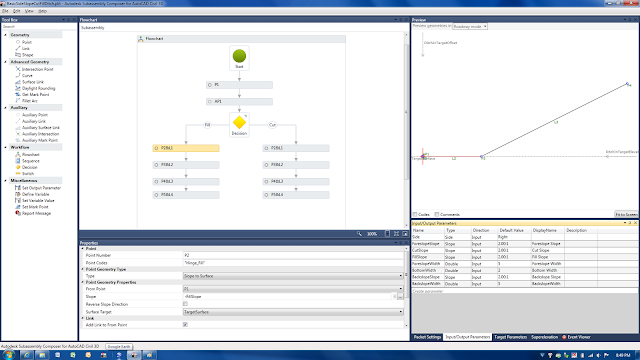


The left hand side contains items in your tool box. If you're familiar with looking through the help menus of various "out of the box" subassemblies, then many of these items will make sense to you.

The center of the window contains the subassembly flowchart. This area helps you visualize how the tools chosen from the tool box relate to one another. From a user standpoint, keeping things clean and organized will make creating a subassmebly much easier. The window directly below the flowchart contains the properties of the tools used. Simply click on an item, and the properties of that item show below.

The lower right window contains several tabs. The first tab, "Packet Settings" allows you to add a subassembly name (referenced in Civil 3D tool space), description of the subassmebly (again referenced in Civil 3D tool space), a help file (PDF, DOCX, or other), and graphic image (for viewing in Civil 3D tool space). Note that the help menu currently does not work for custom subassemblies within Civil 3D; this is a known bug that has not been fixed as of yet.

The next tab is for Input/Output paramters, these show up under subassembly properties, parameters tab within Civil 3D and allow the end user to enter custom values for the components designed in subassembly composer.

The third tab is for Target Parameters such as surfaces, offset targets, and elevation targets. The fourth tab contains super elevation data should that be needed, and the last tab is for the event viewer. I have only dealt with the first three tabs thus far.

The upper right window, called the preview, is probably one of the most helpful areas of the program. This area displays what the subassembly you are creating should look like, with a few limitations. Items I've noticed are when you apply a surface target, an offset targe, or an offset elevation target to the subassembly,the display changes per the preview settings, on the Target Parameters tab mentioned above. Thus causing the display of the design subassembly to appear differently than you'd expect. I'd recommend adding offset and elevation targets into the subassembly design last to avoid this.

The help menu of SAC is pretty good. It seems to be a forum where users can add information, yet with some sort of control as to what information is added. There are several packet files out there for download to visually see how to use each tool. This was probably the best way that I learned how to use the program. Open up one of the PKT files and view the data, click through the various tools and notice the properties programmed for each. Another good method in learning the software is to try and create one of the simple "out of the box" subassemblies within subassembly composer.

Creating a Subassembly

Firstly, in creating your own subassembly, you have to have a great inspiring idea. However, be sure to not pick something too difficult to handle, or you can quickly become disatissfied that your custom subassembly does not work. My first subassembly turned out to be too difficult to achieve at first, so I had to find another that I could actually complete.

I have been using the Civil 3D subassembly BasicSideSlopeCutDitch subassembly for quite a while and have found it extremely useful in roadway design. In more than one circumstance, engineers have requested that I carry the channel along the toe of the fill slope to pick up additional drainage (as shown in the image below). This can be a difficult process without the use of SAC, basically adding a corridor, then grading in an additional channel with grading groups or corridors, and pasting surfaces together. Thus I had the idea to recreate the BasicSideSlopeCutDitch, but modify it to include a channel in the fill section.


The flowchart for this subassembly is shown in the SAC overview image above and basically begins with a point that would be the hinge point of the subassembly and setting a target surface in the target parameters (set the surface preview to something greater than 0, while point 1 should be a 0,0. Next add in an auxiallry point, auxillary tools are temporary calculation tools and do not show up in Civil 3D visibly. The auxiallry point, needs to be set on the target surface, thus the properties type should be set to "Delta X on Surface", form point can either be point 1 or origin, Delta X would be 0, surface target is the target surface.

Next add in a decision; this is a conditional tool allowing you to provide input for a true/false situations. We need to tell the subassembly to determine if it is in a cut or fill situation. Under the properties of the decision the conditional value needs to check both the auxillary point 1 and point 1 Y values in relation to the target surface. Thus if you type "AP1.Y<P1.Y" you are telling the subassembly that if the distance to surface of the auxillary point is less than the distance to surface of the point, then perform the true option, if not perform the false option. The false option can be renamed to Cut and the true option can be renamed to fill, for organization. The left side of the decision tool is always the true value and the right side is always the cut value.

Next add in a point for both the cut side and the fill side. Connect lines to each from each side of the decision tool, you should see the Fill and Cut text show up in the line. Before moving forward, we need to add in user inputs. Add the following user inputs with the columns in order following, name, type, direction, default value, display name:
  • Side, Side, Input, Right, Side
  • ForeslopeSlope, Slope, Input, 2.00:1, Foreslope Slope
  • CutSlope, Slope, Input, 2.00:1, Cut Slope
  • FillSlope, Slope, Input, 2.00:1, Fill Slope
  • ForeslopeWidth, Double, Input, 5, Foreslope Width
  • BottomWidth, Double, Input, 2, Bottom Width
  • Backslope Slope, Slope, 2.00:1, Backslope Slope
  • BackslopeWidth, Double, Input, 5, Backslope Width
Next, add in points so there are a total of 4 points for each cut/fill situations; add flowchart arrow lines to connect each together. Points should reference the previous point, beginning with point 1. Lines should also be added to connect the points, notice the preview update as the information is added.

Next we need to added properties to each of the points starting with the first point on the cut side. This will be the first slope in the ditch, thus we know what the foreslope slope should be and we know what the foreslope width should be from the parameters created above. Make the point type to be "Slope and Delta X", set the slope to "-ForeslopeSlope", and the Delta X to "ForeslopeWidth". Next we need to establish the bottom of the ditch. This we know the bottom width and the bottom is flat, thus we can use the type "Angle and Delta X" where the angle will be "0" and the Delta X will be "BottomWidth". The next segment is the backslope of the channel and should be programmed similar to the foreslope and the last segment will tie from the top of the backslope to the surface. This segment will have a type of "Slope to Surface" using the CutSlope parameter as the slope and the target surface parameter as the surface target. The preview window should be taking shape now.

The fill slope side will be very similar to the cut slope side, however, the first segment should target the target surface at the fill slope first, then proceed into the foreslope of the channel, add in the bottom width, then target the target surface a second time to close the channel. This will not need a backslope as if a backslope is added, there is the possibility of passing the target surface and thus creating a berm, blocking drainage.

Final cleanup of the subassmebly should involve going through each of the points and lines and adding in point codes and codes for the objects. These should be entered in a similar fashion, ie "Top" and "Datum" should be added to all to create a top surface and datum surface on the subassembly.

Recommended Organizational Methods

For ease on end users, I recommend that prior to finalizing your subassemblies, study the help menu of similar "out of the box" subassemblies and use the same format Autodesk does for Input/Output Parameters, Targer Parameters, Point Codes, and Codes. Keeping various tools in line with one another in the flowchart will make it much easier to follow while programming. Click on a tool and drag, or use the arrow keys for a more refined movement.

Help menues should be made up to look similar to the "out of the box" help menus, at a minimum to provide the same type of information, schematics, and order.

Icons should be of the same format as ones provided. Starting with an "out of the box" icon is a great way to develop a nice looking icon. Program icons can be found here: C:\ProgramData\Autodesk\C3D 2011\enu\Tool Catalogs\Road Catalog\Images

Using the Subassembly in Civil 3D

Using the subassembly in Civil 3D is pretty easy. Simply right click on your tool palette, add a new custom palette, and import subassemblies. Browse to the PKT file saved by subassembly composer, select, and hit ok. Subassembly is now ready for use on the palette the same way all others are used.

Other users who do not have Subassembly Composer installed will need to download and install a patch from Autodesk.