Showing posts with label Civil3D. Show all posts

Sunday, May 6, 2018

Leveraging GIS Data in Civil 3D

When utilizing GIS data on a Civil 3D project, one should first ask themselves some questions regarding the data in order to handle processing the data in the most efficient manor. I like visuals for systems thus I've created this flowchart using Autodesk's Praxis Workflow Editor here.


Ultimately in this post, I will explain the four primary method's for importing GIS data in Civil 3D.
  1. Static Connection using MAPIMPORT
  2. Dynamic Connection using FDO
  3. Create Surface from GIS Data
  4. Import GIS Data (Pipe Networks)
First, I think it's helpful to note that GIS data processing commands are distributed with Civil 3D but are not actually a part of Civil 3D - they belong to another piece of Autodesk software called AutoCAD Map 3D. This is helpful to know when you are searching for help documentation on commands and to understand that much of what I'll be posting below applies to AutoCAD Map 3D users as well. And for those moving to 2019 products, we have the exciting news of Only One. AutoCAD. in which we can now get specific toolsets added to AutoCAD to help workflows; AutoCAD Map 3D Toolset being one of those.

1) Static Connection MAPIMPORT Command

The MAPIMPORT command is used for bringing in data in static form into your drawing and can be accessed by typing the command syntax MAPIMPORT. The result is importing as AutoCAD objects as well which usually provides the best results in formatting the data with the normal AutoCAD controls for displaying on drawings.

Upon running the command, you are first prompted for the file. The MAPIMPORT command has many different file types it supports, but for this example we have a simple SHP file and thus will choose ESRI Shapefile (*.SHP).


The next dialog will show your current drawings' assigned coordinate system (highlighted in red) - if you forgot to assign one, you can do so by clicking the globe button without exiting the command. The spatial filter area allows you to clip the data to a specific area, should your drawing be setup already in a way that you can correct select the spatial location. Each file selected will appear in the Import Properties section of the dialog where you can assign the layer of the object and verify the coordinate system of the file (highlighted in blue). Note that if the drawing and the file have differing coordinate systems, the software will translate the file data to the current drawing's coordinate system.


Next is the data attached to the file. If you want to be able to view the extended object data, it's important to click into the data column for each file and select the '...' button to choose the option to Create Object Data. You can then also specify which fields are brought over.


Lastly, when using this option, I prefer to Import Polygons as closed Polylines.


Here is the result of this shape file that contained data for the countries of Africa and how the data came in. Note that upon selecting any objects and viewing the AutoCAD properties, there is a section for Object Data in which you'll be able to view the extended info about that object.


2) Dynamic Connection Using FDO

The FDO  option provides a dynamic link to the data which is important if the data will be updating regularly throughout your project. To access this option, you must first access the Map3D portion of Civil 3D using the Map Task Pane. To do this from the Civil 3D workspace, type in the command syntax MAPWSPACE and choose to turn the Task Pane On. The palette below will appear.

Click on Data (highlighted in red) and choose Connect to Data...


 The Data Connect Palette will appear showing all the different methods of connecting to data. For this SHP file, we'll use the Add SHP Connection, then choose either the SHP file button or the folder button.


 Once choose, select the Connect button.


 The SHP file(s) will be added as connections and show up in the sources. To add them to your current drawing, select them and choose Add to Map.


Below you can see the same SHP file brought in, though the default appearance looks drastically different. Note when choose the objects and viewing in properties, they show as Map Features. These cannot be formatted using the native AutoCAD methods.


 To format the appearance, note that you can see these in your Map Task Pane. Right click on the item and choose edit style. From here you can use the Map method of formatting how the objects appear.


Any changes to the data on the GIS side will then be reflected into your drawing automatically.

3) Static Connection: Create Surface From GIS Data Command

To streamline the process of importing surface data and generate a Civil 3D surface, we can use the Create Surface from GIS Data command found on the Home Tab, Surfaces drop down or use the command syntax CreateSurfaceFromGISData.


 The object options tab will provide you the ability to name the surface and set it's style.


Next you'll connect to the data type file or folder, and select Login button.


 Next you'll see the schema available in the selected file along with the coordinate system assigned to the file and the coordinate system of your drawing. This command will translate the data as necessary.


 On the Geospatial Query tab we can filter the data to a selected are on the drawing if you already know where your site lies.


 Lastly, on the Data Mapping tab, you need to specify what data in the file is the relevant Civil 3D Elevation property - in this case the elevation data is stored as ContourEle within the SHP file.


 Selecting finish will then generate a surface from the selected file in which we can then use as our normal Civil 3D surfaces. More information on this command can be found at this AKN.

4) Static Connection: Import GIS Data Command

Autodesk should really be relocated under the Home tab Create Pipe Networks and should be called Create Pipe Network From GIS data as that's ultimately what it is meant to do. But for now, to access this command, go to the Insert tab, Import panel, and select the drop down. Choose Import GIS Data or use the command syntax _AeccImportGISData


You'll be prompted to select the SHP file or path to SHP files, then follow the steps through wizard to map the data to the corresponding properties.


 On the Object Options tab you'll name the Civil 3D Pipe Network, select a Parts List and labels.


 On the Schema and Coordinates tab, you'll see your SHP files and if it's able to show the coordinate system of the data it would populate correctly - for this example, these files will need some additional work to assign the coordinate system with ArcGIS. At the bottom of this tab page you can also set your drawing's coordinate system.


For Data Mapping: Pipes, you'll need to look at the available feature classes in the SHP file and select what cross sectional shape to apply to the pipes. Click add to apply that shape to the feature class.


 Once added, then you'll need to assign attributes from the SHP file to the Civil 3D properties. This is where you'll need to fully understand the Schema used in the object data for the SHP file to know what to choose for the various components of the Civil 3D pipes. Critical items will be material, diameter, start location, end location, and elevations, but you may have other data helpful for mapping.


The same process will be applied for structures on the Data Mapping: Structures tab.


 With the Query Options tab, you'll be able to limit how much of the SHP file is brought into Civil 3D. This can significantly speed up the process of bringing in the data depending on how many pipes and structures are in the SHP files.


 Lastly is the Cleanup tab in which you can force snap tolerances for pipes and structures and also discard any data that is unlinked to pipes/structures.


Ultimately, bringing the data in you'll have a Civil 3D Pipe Network with the proper locations, elevations, materials, and other data assigned from the SHP file. For more information, see this AKN.


In my next post, I plan to follow with utilizing the AutoCAD Map 3D's ability to query data between drawings on different coordinate system and how we can leverage that to easily exchange data between files.

Monday, April 23, 2018

Creating Points Along an Alignment by Specified Stations


I recently had a project in which I need to import a set of points along an alignment to locate some bridge pier locations. The locations were provided to me via a Microsoft Word document as Stations along the alignment like shown below

One could manually type in these locations along the alignment with the command to Create Points Station / Offset option, but that would take time to do and would introduce more chances for human error in typing in the stations and offsets.

Alternatively, I chose to convert the table provided into Microsoft Excel and import the data using the the Create Points Import From File option as shown below.


In order to do this, there was a few minutes of manipulating the data into Microsoft Excel by doing the following:

  1. Highlight and Copy the table in Microsoft Word
  2. Paste into a blank Excel spreadsheet
  3. Reorder the columns provided to be in the following format: Station, Offset, Description (Pier Number). Note: Additional format options are available and can bee seen from command line screen shots below.
  4. Set the Offset column to be 0 in order to have the points fall directly on the alignment
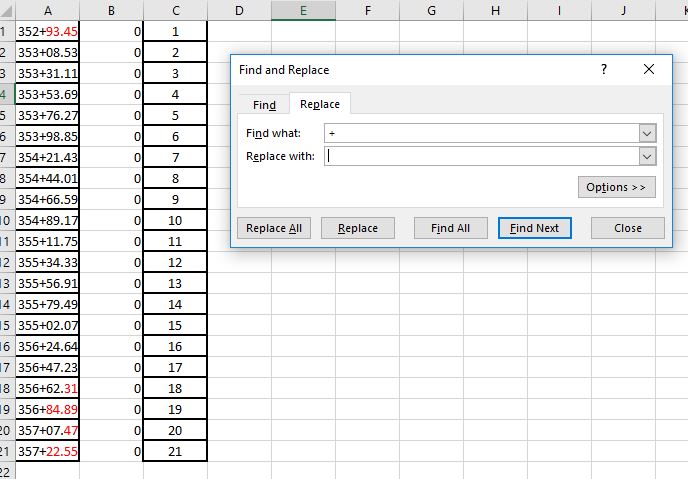
  5. Replace the station format into numerical format - to do this, do a find and replace for "+" and replace with nothing.
  6. Save the Microsoft Excel spreadsheet as a CSV file, comma delimited.
  
Data in Microsoft Excel

Data in Notepad viewing the CSV file

Next, in a Civil 3D file containing the Alignment, run the Create Points Import From File option shown on one of the above screenshots. Select the CSV file and follow the command line prompts. You'll need to specify the File format by entering in the corresponding number 1 - 6, the delimiter format corresponding number 1 or 2, and an Invalid indicator for Station Offset - default -99999. The invalid indicator is used for points that can't be computed due to offset issue or for being outside the extents of the alignment.


Overall, this process took me about 5 minutes to bring the data in. To save even more time if the stations were to change frequently, I would provide the source of the data with a Microsoft Excel spreadsheet setup numerically, formatted to show the stations, in the order needed to easily import the data as this would save additional time.

For more information, see this Autodesk Knowledge Network page

Tuesday, November 3, 2015

Wednesday, July 22, 2015

Civil 3D Users Looking for Work?

Looking for an experienced CAD Operator/Designer in Chicago with Civil 3D experience in Chicago.

See Job Posting on LinkedIn

Monday, October 27, 2014

Missing Or Hidden Dialog Boxes in AutoCAD

Ever have dialogs disappear in AutoCAD and not be able to access them without what seems to be CTRL-ALT-DEL and exiting the software? This blog post helped me out greatly to solving the issue when using multiple monitors and the dialogs disappearing: http://autodesk.typepad.com/beyondthebox/2013/10/missing-or-hidden-dialog-boxes-in-autocad.html

Additionally, I've had some app dialogs disappear and the command remains running but inaccessible due to accidentally clicking off of the dialog. How do you gain access back? Here's an example and how.

Here I've used an app from the app store and the dialogs appear - (App is Set Multiple Object Styles for Civil 3D)

 In the image below, I've accidentally clicked off of the dialog and the focus goes back to AutoCAD Civil 3D. The dialog has disappeared but the command is still running - see command line. No obvious way to access the dialog.
However, we can get around this issue by cycling through our running applications using ALT + TAB. Then use the arrow keys to move over the AutoCAD Civil 3D icon, at which point you will see text noting the dialog that is currently running. Upon selecting the AutoCAD Civil 3D icon the running dialogs will appear again allowing for selection and completion of the command.


Tuesday, February 25, 2014

Civil 3D Slope Across Pipes App

Have you been looking for a better workflow in assigning slopes to pipes, especially when they are not needed to be analyzed in Storm Sewers or Storm and Sanitary Analysis? There's a new app for that on the app store now!!

Check out Slope Across Pipes here.

This app allows for quickly setting the slope of a number of pipes within a common pipe network and applying pipe drop across each structure. The app allows for selecting pipes/structures in plan view or pipes/structures in profile view and offers two modes - by slope and by inverts. When selecting parts in profile view, the app also provides the ability to extract the selected point elevation from the profile to apply to the pipe network. For both modes, the app does not care if the upstream or downstream end is selected, nor does it care if the start and end points of the pipes are in the same configuration throughout. When applying pipe drops in structures, the app checks to see if the structure is not a null structure before applying.

App running via Plan View


 App running via Profile Slope Mode Upstream to Downstream

 App running via Slope Mode Downstream to Upstream
 
 App running via Profile Inverts Mode Downstream to Upstream

 App running via Profile Inverts Mode Upstream to Downstream

Wednesday, August 28, 2013

Drawing Design Notes

A common practice of mine, has once again saved my position with my firm, and I thought I'd share with you all something I think everyone should be doing when working on complex designs in AutoCAD or AutoCAD Civil 3D.

I've found that design notes are extremely important to have when working on drawings. Often times I'll do a grading plan and complete the full design and not come back to it for almost 6 months - and it's usually do to someone not understanding why the surface may have been developed the way it was. This happened to me once again today where others were getting frustrated as to why something wasn't how they thought it should be - so I said, let me check my drawing notes. I open the design and read through my notes and pointed out a key feature that the engineer had told me to do in the design that they had forgotten about - they thanked me for my detailed notes.

Basically in any complex drawing, in model space off in what I like to call lala land, away from the site or where drawing views would be pointed I place some MTEXT that describes exactly how my design was done. I typically try to be as thourough as possible explaining Civil 3D procedures or AutoCAD procedures as to how something was achieved. It is a real life saver when you come back to that drawing 6 months to a year from when it was done.

If you don't keep design notes in your drawings, I highly recommend doing so.


BLOG POST NOTES (To Save My Blogging Abilities in the Future :) ):
  • This post was written to explain how critcal design notes placed in drawings have saved my career once again.
  • I used Google's blogging page to create my blog post and tried to emphasize my point as well as I could.
  • I began by opening with how the practice has saved my career, but did not reveal it until the second paragraph - hopefully enticing readers to read on.
  • From there I explained the practice and the situation that occured on that day.
  • Next I explained exactly how I achieve that practice.
  • Finally I ended with a recommendation

Friday, August 16, 2013

Batch Uninstalling Autodesk Software

With the installation of new Autodesk Products comes the uninstallation of old Autodesk Products. This process can be time consuming and a bit annoying - especially with the large suite packages.

Thanks to a great post by ProSOFT here, we have a great time saving solution for uninstalling Autodesk software.

I broke down the steps into a list for ease of reading, but it's all there in the blog. They even included an option for uninstalling on multiple machines at once. I added an option below to uninstall a product by year as well as I tend to load new versions side by side with the previous to ensure bugs are worked out.


  •   Go to Start, All Programs, Accessories.

  •  Locate Command Prompt; right click and choose Run as Administrator


  •  At the prompt type ‘wmic’

  •  After wmic:root\cli> type the following based on your desires: 

  •  Be sure to note where the single quotes and double quotes are located! Typing this out wrong will result in an invalid query

Uninstall ALL Autodesk Software
product where "vendor like 'autodesk%'" call uninstall /nointeractive

Uninstall Autodesk Software by Year
        ***Replace the year 2013 as desired***
product where "vendor like 'autodesk%' and name like ‘%2013%’" call uninstall /nointeractive
  • Hit enter.

  •  A return value of 0 means it successfully uninstalled. If you get a return value of 1603, check to make sure you ran the command as administrator in step 2.

The screenshots below shows the first attempt and missing a double quote resulted in an invalid query. The second attempt began the process.


Hope this helps save you some time - and another big thanks to ProSOFT for posting.