Wednesday, May 16, 2018

Leveraging GIS Data in Civil 3D: Querying Data Between Files

Following up on last week's post on Leveraging GIS Data in Civil 3D, this week I'm covering how to query data between drawing files using Civil 3D's built in Map functionality. As I mentioned in the previous post, this blog post also applies to Map 3D software as a stand alone and to the new 2019 AutoCAD Only One with the Map extension added in.

To begin, I already have a drawing file setup with GIS data from a county source. This file can be in whatever coordinate system deemed necessary to match the data and I had used the MAPIMPORT command explained in the previous blog post.


However, when clicking on contours, you can see that the AutoCAD property of the contours do not read the proper information from the Object Data table, thus in this post I'll demonstrate how to query the data over to a new drawing file on the same or a different coordinate system, apply a spatial filter, and alter the AutoCAD properties of the objects to inherit the Object Data information.

For this example, I am using the Elevation property, but this can be done for almost any of the AutoCAD properties about the objects.


In a new drawing, I've setup my project coordinate system and brought in the Bing imagery for my site and located where I wanted contour data. At the bottom of my screen you can see the coordinate system. By the way, by default this coordinate system in the status bar is turned off by default. To turn this on, you can use the command MAPSTATUSBAR.


 Next, to use the Map querying functionality, we need to turn on the Map Task Pane. Use the command MAPWSPACE to turn this on. You should see something like below.


Using the MapExplorer tab of the Map Task Pane, right click on drawing and select Attach...


 On the select drawing to attach dialog, you'll find that this is not as simple to use as other dialogs. Essentially you have to setup a drive alias to your file(s) location and then tell this dialog to look at that drive alias. To do this, select the button circled in red below.


 Here you'll need to setup the drive alias and browse to your actual path. Then select Add to add the alias to the drive list. Select close when done.


 Now on the Select drawings to attach dialog, you should be able to select your drive alias and it will take you to your file(s) location.


Find the drawing(s) you would like to reference, and select Add. The drawing(s) will be added to a list. Select Ok when done.


In the Map Task Pane, you should now see your drawing attached. It's important to note that when doing this, the file is opened and a file lock is placed on the file. Once completed, you will need to make sure the file(s) are detached to release the locks.


Next, we are ready to define our query of data, thus on the Map Task Pane, on Map Explorer tab, locate Query Library and right click, select Define.


The dialog below will appear to allow you to build your query. The top white box is your current query information. The bottom left Query type allows you to query a location of the drawing(s), specific object property information, Data, and SQL calls on the tables. Query Mode allows you to Preview, Draw, or Report on the query. Options allows you to do some additional items like altering properties.

For this example, let's start by selecting the Location... button.


Here you'll be prompted to select your Location Condition. For Boundary type I'll use Boundary, with a selection type of Inside. This should bring in the data inside a selected Polyline. If you want all the data, just choose All. For some of the boundary options like Polyline and Window, you'll need to select the Define button at the bottom and the define the area or object. Select ok when done.


Next, you'll be back on the Define query dialog. Choose Properties. Here we'll tell it to only look at objects on a specific layer. We can choose layer, then Values, and select our layer. Choose Ok.


Back on the Define query dialog, we now want to specify what properties we would like to alter. Select the Alter Properties button. Here you can alter many properties at once. The white box at the top of the dialog shows your Current Property Alterations. Below that you have options of what you would like to alter (FYI, you can even alter Text to display specific object data property information!).

For this example, we'll choose Elevation, and then choose the Expression button. The expression dialog will appear and we'll need to select the corresponding Object Data Table and property we want to pass over. In this case it's the Walton_Contours, ContourElev property. Select Ok on the Expression dialog.


You should now see your expression like shown below. Click Add to add this to your current property alterations.


The property alterations dialog will now show the information like below. Either add more properties to alter, or choose Ok when done.


Back on the Define Query dialog, we should see something like below. Be sure to set the Query mode to Draw, and make sure the Checkbox in Options next to the Alter Properties is checked. This controls whether the Alter Properties runs or not. Choose Execute Query when done.


The contour data should now come over and when selecting a contour you can see the Object Data table information has been applied to the AutoCAD elevation property... for every contour in your query! Again, this can be done for many objects and properties all at once and could be very helpful to translate your GIS data appropriately.


Lastly, as I mentioned earlier, be sure to detach your file from the Map Task Pane to ensure it is unlocked for others to use.


It's important to note that this is just an example of one type of data. The options here are nearly endless with the what data you are using and what can be queried and fully brought into functional AutoCAD objects from GIS data referencing the GIS Object Data tables. It's also important to note that I am not aware of any ways to apply GIS Object Data to Civil 3D objects - the Alter Properties only works with the AutoCAD Properties available and does not allow for extended Civil 3D information - nor does it allow for access to Property Sets which I believe could be beneficial for Civil 3D 2017 and greater which provides access and labeling of Property Sets.

Sunday, May 6, 2018

Leveraging GIS Data in Civil 3D

When utilizing GIS data on a Civil 3D project, one should first ask themselves some questions regarding the data in order to handle processing the data in the most efficient manor. I like visuals for systems thus I've created this flowchart using Autodesk's Praxis Workflow Editor here.


Ultimately in this post, I will explain the four primary method's for importing GIS data in Civil 3D.
  1. Static Connection using MAPIMPORT
  2. Dynamic Connection using FDO
  3. Create Surface from GIS Data
  4. Import GIS Data (Pipe Networks)
First, I think it's helpful to note that GIS data processing commands are distributed with Civil 3D but are not actually a part of Civil 3D - they belong to another piece of Autodesk software called AutoCAD Map 3D. This is helpful to know when you are searching for help documentation on commands and to understand that much of what I'll be posting below applies to AutoCAD Map 3D users as well. And for those moving to 2019 products, we have the exciting news of Only One. AutoCAD. in which we can now get specific toolsets added to AutoCAD to help workflows; AutoCAD Map 3D Toolset being one of those.

1) Static Connection MAPIMPORT Command

The MAPIMPORT command is used for bringing in data in static form into your drawing and can be accessed by typing the command syntax MAPIMPORT. The result is importing as AutoCAD objects as well which usually provides the best results in formatting the data with the normal AutoCAD controls for displaying on drawings.

Upon running the command, you are first prompted for the file. The MAPIMPORT command has many different file types it supports, but for this example we have a simple SHP file and thus will choose ESRI Shapefile (*.SHP).


The next dialog will show your current drawings' assigned coordinate system (highlighted in red) - if you forgot to assign one, you can do so by clicking the globe button without exiting the command. The spatial filter area allows you to clip the data to a specific area, should your drawing be setup already in a way that you can correct select the spatial location. Each file selected will appear in the Import Properties section of the dialog where you can assign the layer of the object and verify the coordinate system of the file (highlighted in blue). Note that if the drawing and the file have differing coordinate systems, the software will translate the file data to the current drawing's coordinate system.


Next is the data attached to the file. If you want to be able to view the extended object data, it's important to click into the data column for each file and select the '...' button to choose the option to Create Object Data. You can then also specify which fields are brought over.


Lastly, when using this option, I prefer to Import Polygons as closed Polylines.


Here is the result of this shape file that contained data for the countries of Africa and how the data came in. Note that upon selecting any objects and viewing the AutoCAD properties, there is a section for Object Data in which you'll be able to view the extended info about that object.


2) Dynamic Connection Using FDO

The FDO  option provides a dynamic link to the data which is important if the data will be updating regularly throughout your project. To access this option, you must first access the Map3D portion of Civil 3D using the Map Task Pane. To do this from the Civil 3D workspace, type in the command syntax MAPWSPACE and choose to turn the Task Pane On. The palette below will appear.

Click on Data (highlighted in red) and choose Connect to Data...


 The Data Connect Palette will appear showing all the different methods of connecting to data. For this SHP file, we'll use the Add SHP Connection, then choose either the SHP file button or the folder button.


 Once choose, select the Connect button.


 The SHP file(s) will be added as connections and show up in the sources. To add them to your current drawing, select them and choose Add to Map.


Below you can see the same SHP file brought in, though the default appearance looks drastically different. Note when choose the objects and viewing in properties, they show as Map Features. These cannot be formatted using the native AutoCAD methods.


 To format the appearance, note that you can see these in your Map Task Pane. Right click on the item and choose edit style. From here you can use the Map method of formatting how the objects appear.


Any changes to the data on the GIS side will then be reflected into your drawing automatically.

3) Static Connection: Create Surface From GIS Data Command

To streamline the process of importing surface data and generate a Civil 3D surface, we can use the Create Surface from GIS Data command found on the Home Tab, Surfaces drop down or use the command syntax CreateSurfaceFromGISData.


 The object options tab will provide you the ability to name the surface and set it's style.


Next you'll connect to the data type file or folder, and select Login button.


 Next you'll see the schema available in the selected file along with the coordinate system assigned to the file and the coordinate system of your drawing. This command will translate the data as necessary.


 On the Geospatial Query tab we can filter the data to a selected are on the drawing if you already know where your site lies.


 Lastly, on the Data Mapping tab, you need to specify what data in the file is the relevant Civil 3D Elevation property - in this case the elevation data is stored as ContourEle within the SHP file.


 Selecting finish will then generate a surface from the selected file in which we can then use as our normal Civil 3D surfaces. More information on this command can be found at this AKN.

4) Static Connection: Import GIS Data Command

Autodesk should really be relocated under the Home tab Create Pipe Networks and should be called Create Pipe Network From GIS data as that's ultimately what it is meant to do. But for now, to access this command, go to the Insert tab, Import panel, and select the drop down. Choose Import GIS Data or use the command syntax _AeccImportGISData


You'll be prompted to select the SHP file or path to SHP files, then follow the steps through wizard to map the data to the corresponding properties.


 On the Object Options tab you'll name the Civil 3D Pipe Network, select a Parts List and labels.


 On the Schema and Coordinates tab, you'll see your SHP files and if it's able to show the coordinate system of the data it would populate correctly - for this example, these files will need some additional work to assign the coordinate system with ArcGIS. At the bottom of this tab page you can also set your drawing's coordinate system.


For Data Mapping: Pipes, you'll need to look at the available feature classes in the SHP file and select what cross sectional shape to apply to the pipes. Click add to apply that shape to the feature class.


 Once added, then you'll need to assign attributes from the SHP file to the Civil 3D properties. This is where you'll need to fully understand the Schema used in the object data for the SHP file to know what to choose for the various components of the Civil 3D pipes. Critical items will be material, diameter, start location, end location, and elevations, but you may have other data helpful for mapping.


The same process will be applied for structures on the Data Mapping: Structures tab.


 With the Query Options tab, you'll be able to limit how much of the SHP file is brought into Civil 3D. This can significantly speed up the process of bringing in the data depending on how many pipes and structures are in the SHP files.


 Lastly is the Cleanup tab in which you can force snap tolerances for pipes and structures and also discard any data that is unlinked to pipes/structures.


Ultimately, bringing the data in you'll have a Civil 3D Pipe Network with the proper locations, elevations, materials, and other data assigned from the SHP file. For more information, see this AKN.


In my next post, I plan to follow with utilizing the AutoCAD Map 3D's ability to query data between drawings on different coordinate system and how we can leverage that to easily exchange data between files.

Tuesday, May 1, 2018

Civil 3D Polyline Tools

When I was a kid I recall my dad using the phrase 'a day late and a dollar short' off and on. I know that last week I said I'd be posting these weekly now and given that I'm a day late on this post, hopefully it's still helpful to you.

I tend to do a lot of work with grading and Civil 3D Surface. My workflow in grading has been to utilize all types of Civil 3D grading tools (feature lines, grading groups, corridors, etc) and ultimately paste surfaces together to create a final surface. Often in this work I find myself having to create boundaries for my various surfaces to 'clip' the surface so that it is ready for pasting. With this, you end up working a lot with polylines, thus this post is sort of a collection of polyline tools both native to the software and then some additional 3rd party tools / code that can assist in generating and cleaning up polyline boundaries.

Extracting Polyline Boundaries from Surfaces

For generating boundaries on corridor surfaces, I feel these two commands get overlooked - but are very fast and helpful.

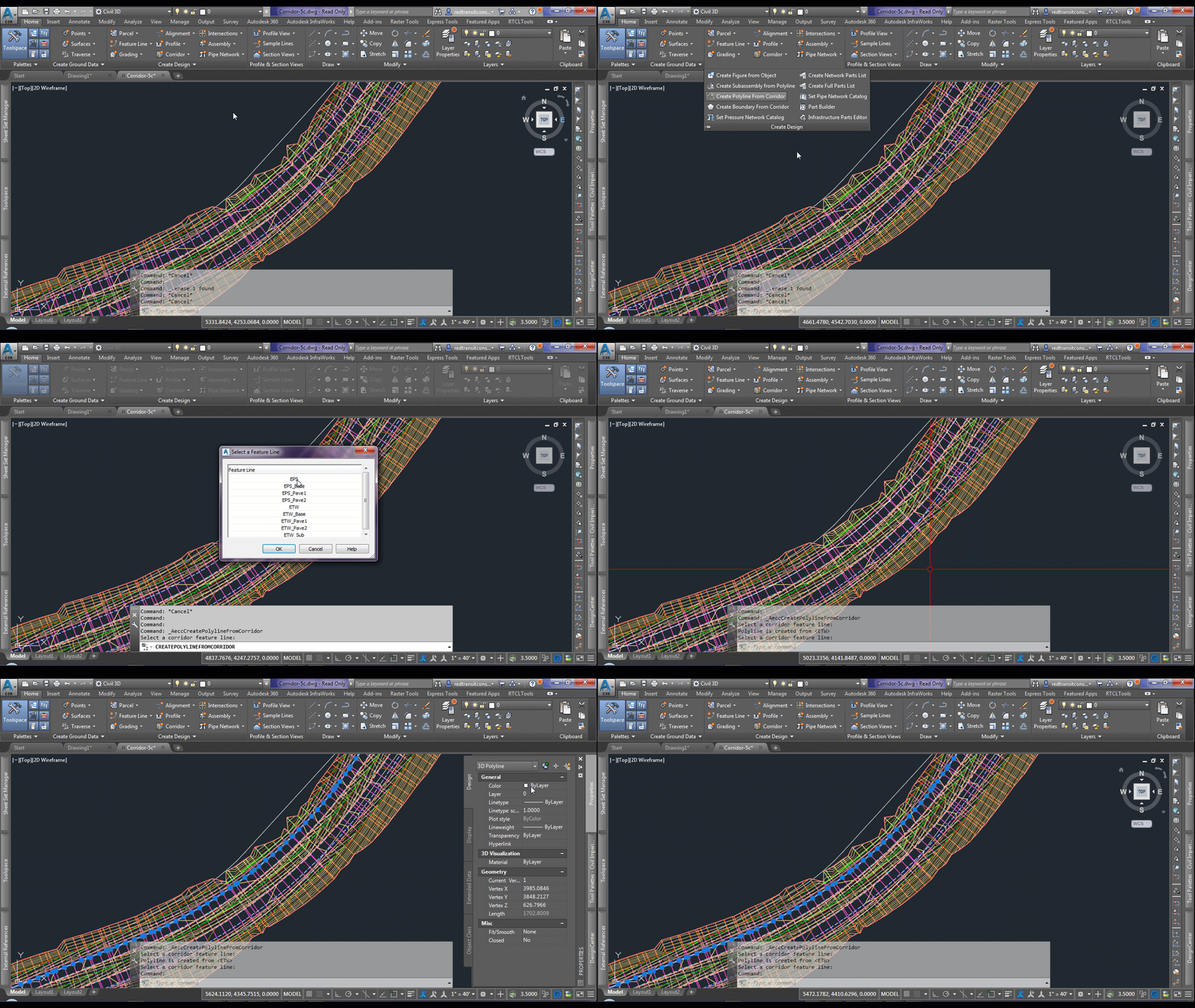
Create Polyline from Corridor
  • Command Syntax: _AeccCreateSubFromPline
 

Create Boundary from Corridor
  • Command Syntax: _AeccCreateBoundaryFromCorridor

General Surface Object Extraction
  • Command Syntax: _AeccSurfaceExtractObjects
I don't have much to say out about the native Surface Object Extraction tool other than it's cumbersome and a bit of pain to use. Make sure whatever you want to extract is turned on in your surface style prior to running the tool (my biggest pet peeve of this native tool). To help with this, I have a free command line tool that allows you to quickly modify a style's object visibility here on the Autodesk App Store.

95% of the time I'm using this for extracting boundaries, thus I'm in the works of a new utility to extract boundaries to be available on the Autodesk App Store soon... more to come on this!


Conversion of 3D Polylines and 2D Polylines

I believe these next three commands are fairly wide known and used within the Civil 3D community, but for sake of those new to the software, I'll list them out; these are routinely used in my workflows.

Convert 2D to 3D Polylines
  • Command Syntax: _AeccConvertPlines
Convert 3D to 2D Polylines
  • Command Syntax: _AeccConvert3dPolys


Flatten Objects

  • Command Syntax: Flatten

This command will help remove elevations from lines, arcs, polylines, 3D Polylines and more in a quick selection of objects.

Determining Issues with Polylines

Perhaps one of the most frustrating and time intensive parts is trying when you are trying to join a polyline and it will not join, or once you have a polyline joined and closed, attempting to add it to a surface and finding the polyline will not add. These issue can typically be resolved by running the three previously mentioned commands, but also checking your polyline for intersections.

Self Intersecting Polylines
How do you check if your polyline has intersections? And if it does, how do I know where the intersections occur? There are no native commands to assist with this that I am aware of.

CAD Studio has a great free LISP utility that can help you find where the intersections of a self intersecting polyline occur here and there's more documentation on it here.

Alternatively, if you have someone that can handle .NET programming, there's some great starter code to do this here. For myself, I've used this code and then added a circle at the intersection points in which I can then find the circles on screen and quickly correct the issue.


Find Polyline End Location
When you are working with a polyline that thousands of vertices and loops back in on itself, it can be beneficial to know where the start/end location is. This will help you to quickly get to that location and make potential edits to resolve the issue. One can do this through the Properties palette as shown below


or, you can do this with a this great little lisp routine shared by the Greg Battin on the AutoCAD Tips Blog that helps to locate gaps in polylines.

Weed Features
  • Command Syntax: _AeccWeedFeatures
  • If you have too many vertices in your extracted boundary from a surface you may want to weed out some of the vertices - beware not to go too far in the weeding however as you could end up clipping off the exact location a surface ties into the existing grade - use your best judgement on this. Here's more on this command
Explode, Flatten, and Rejoin
When in doubt of the issue, don't waste your time trying to figure it out. First change the polyline layer and isolate it, explode at least twice to get it down to basic linework, flatten, and rejoin the polyline.

Linework Commands

These commands tend to be missed I think, but are extremely powerful. I'll list the top three favorites here but there are quite a few. I suggest looking into what all these commands do and how you can leverage them in your workflows.

Linework Shrinkwrap
  • Command Syntax: LINEWORKSHRINKWRAP

Linework Divide
  • Command Syntax: LINEWORKDIVIDE

Linework Trim
  • Command Syntax: LINEWORKTRIM

Many more... just type in LINEWORK and you can see them all listed.

Boundary Area
  • Command Syntax: BPOLY or BOUNDARY
  • This command is more well known, but ultimately allows you to pick inside an area similar to the hatch command and get the boundary as a polyline... just make sure you isolate layers first.

Summary

Overall, when I'm working with on a specific boundary that has a lot of vertices and data to work with, I use a multitude of these commands - but here's my general workflow using Autodesk's Praxis Workflow Editor


Monday, April 23, 2018

Creating Points Along an Alignment by Specified Stations


I recently had a project in which I need to import a set of points along an alignment to locate some bridge pier locations. The locations were provided to me via a Microsoft Word document as Stations along the alignment like shown below

One could manually type in these locations along the alignment with the command to Create Points Station / Offset option, but that would take time to do and would introduce more chances for human error in typing in the stations and offsets.

Alternatively, I chose to convert the table provided into Microsoft Excel and import the data using the the Create Points Import From File option as shown below.


In order to do this, there was a few minutes of manipulating the data into Microsoft Excel by doing the following:

  1. Highlight and Copy the table in Microsoft Word
  2. Paste into a blank Excel spreadsheet
  3. Reorder the columns provided to be in the following format: Station, Offset, Description (Pier Number). Note: Additional format options are available and can bee seen from command line screen shots below.
  4. Set the Offset column to be 0 in order to have the points fall directly on the alignment
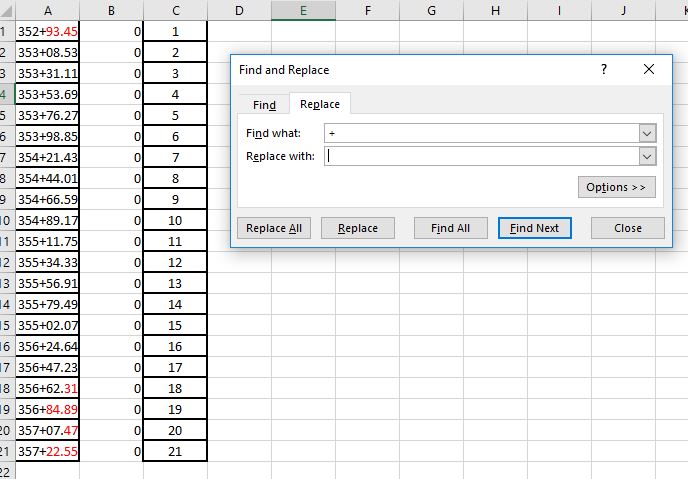
  5. Replace the station format into numerical format - to do this, do a find and replace for "+" and replace with nothing.
  6. Save the Microsoft Excel spreadsheet as a CSV file, comma delimited.
  
Data in Microsoft Excel

Data in Notepad viewing the CSV file

Next, in a Civil 3D file containing the Alignment, run the Create Points Import From File option shown on one of the above screenshots. Select the CSV file and follow the command line prompts. You'll need to specify the File format by entering in the corresponding number 1 - 6, the delimiter format corresponding number 1 or 2, and an Invalid indicator for Station Offset - default -99999. The invalid indicator is used for points that can't be computed due to offset issue or for being outside the extents of the alignment.


Overall, this process took me about 5 minutes to bring the data in. To save even more time if the stations were to change frequently, I would provide the source of the data with a Microsoft Excel spreadsheet setup numerically, formatted to show the stations, in the order needed to easily import the data as this would save additional time.

For more information, see this Autodesk Knowledge Network page

Friday, December 30, 2016

Stage Storage Alternatives

Let's face it... the Stage Storage Tool in Civil 3D needs a complete overhaul. The only time it works for me without having to do a bunch of extra work, is on a cleanly graded design surface. Seems that most of my work is incorporating existing data which is never good enough for the Stage Storage Tool. So I ran across some links in explaining alternative methods that I need to try... saving these so I don't forget and you're welcome to look into as well. Hopefully, they provide great results that can create less work in making the software do what I want so I can focus on the design...

ALTERNATIVE STAGE STORAGE TECHNIQUE – CIVIL 3D TABLES

STAGE STORAGE ANALYSIS OF STOCKPILES/DAM WALLS (BETWEEN TWO IRREGULAR SURFACES)

Tuesday, November 3, 2015